
To use the flash on iPhone, open Camera and tap the Flash control above the camera frame to switch between Auto, On and Off. For the bright party or "paparazzi" look, set it to On rather than Auto, shoot in a dim room, and stand close to your friends. If the flash isn't working, Apple's first steps are to remove any case or film that covers it, restart the iPhone, and test the flashlight in Control Center. If it fires only sometimes, it's probably set to Auto.
Key takeaways
- The Flash control sits above the camera frame. It's also in the camera tools: tap the Camera Controls button or swipe up from the camera modes, then tap Flash.
- Turning the flash on turns Night mode off. Apple says the two don't work together.
- An iPhone "flash" is an LED light, closer to a flashlight than to the xenon flash tube of a 2000s compact, so the light is softer and reaches less far.
- iPhone 17 Pro and 17 Pro Max have Apple's Adaptive True Tone flash. iPhone 17 and iPhone Air have True Tone flash.
- For the party look: flash On, dark room, get close, shoot straight at your friends.
How to turn on the flash on iPhone
Your iPhone camera is set to use the flash automatically when it thinks you need it. To take control:
- Open Camera. The Flash and Live Photo tools appear above the camera frame.
- Tap the Flash control. Each tap switches between Auto, On and Off. Pick On if you want the flash every time.
- Can't see it? Tap the Camera Controls button or swipe up from the camera modes at the bottom of the screen, tap Flash, then tap to switch between Auto, On or Off. Tap the screen to close the menu (Apple).
- Keep the button on screen. Go to Settings > Camera > Indicators, then turn on Flash.
Flash and Night mode
This trips a lot of people up. Night mode turns on by itself in low light, and while it's on, the flash isn't active. Apple says that "turning on Live Photos or the flash deactivates Night mode." If your flash is on Auto, it turns on automatically in low light (Apple). So you choose one or the other: the soft, bright Night mode look or the hard flash look. For a party snapshot, you want the flash. For the soft Night mode look instead, see night pictures with iPhone. For lights on a tree or a street, it is the other way round: here is how to photograph Christmas lights on iPhone.
Why an iPhone flash looks different from a camera flash
Old point-and-shoots and phones use different kinds of light. Digital Camera World puts it plainly: the "flash" inside a smartphone is "more of an LED flashlight than a real xenon flash tube." That's why it can stay on for video, but it's "far less powerful than the built-in flash on a compact camera." A compact's flash is what creates "that retro, paparazzi feel of direct flash" (Digital Camera World).
Apple has spent years making its LED flash look natural. In 2013, iPhone 5s introduced the True Tone flash, which "variably adjusts color and intensity for over 1,000 combinations, so photos taken with a flash appear more natural" (Apple Newsroom). In 2022, iPhone 14 Pro got the Adaptive True Tone flash, "an array of nine LEDs that change pattern based on the chosen focal length" (Apple Newsroom). Natural-looking is the goal. A digicam's harsh pop isn't.
For comparison, Canon's PowerShot SD500, a 2005 compact, listed its built-in flash range as 50 cm to 5.0 m (1.6 to 16.4 ft) at the wide end (Canon Camera Museum). That's the kind of flash behind the photos people now try to copy.
| iPhone 17 model | Rear flash (Apple's spec) | Front camera |
|---|---|---|
| iPhone 17 | True Tone flash | Retina Flash |
| iPhone Air | True Tone flash | Retina Flash |
| iPhone 17 Pro | Adaptive True Tone flash | Retina Flash |
| iPhone 17 Pro Max | Adaptive True Tone flash | Retina Flash |
Sources: Apple tech specs for iPhone 17, iPhone Air, iPhone 17 Pro and iPhone 17 Pro Max. Retina Flash is the screen-as-flash for selfies. When Apple introduced it in 2015, it said it "momentarily makes the display three times brighter" (Apple Newsroom).
How to get the direct-flash party look
NPR described the turn-of-the-millennium party photo as "overexposed in the center with a blinding flash" (NPR via Michigan Public). You can get part of the way there with the Camera app. These are tips that work for us, not Apple's rules:
- Set the flash to On. Auto decides for you and may skip the flash in a room it thinks is bright enough. On means it fires every time, and Night mode stays off.
- Find a dim room. At a house party or in a bar, the flash does most of the lighting, so faces pop and the room behind stays dark. Hosting this week? Here is a Friendsgiving shot list built around it.
- Get close. Try about 1–2 m (3–6 ft) from your friends. The LED is weaker than a compact's flash, so people at the back of the room won't get much light.
- Shoot straight on. Hold the phone at eye level and aim right at people. The flat, frontal light is the whole point. Want to be in the shot too? Here is how to set the iPhone camera timer.
- Warm it up. A warm Photographic Style helps the colors feel older. Our Photographic Styles guide has a few to try.
Red eyes? Apple lists "Advanced red-eye correction" in the specs of every iPhone 17 model, so the phone has its own fix for them. Planning a December party? Here are Christmas party photo ideas with this flash look. Or any night of the year: Y2K picture ideas.

iPhone flash not working? Apple's steps
Apple's support page for camera and flash problems suggests these steps, in this order (Apple):
- Remove anything in the way. Take off any case, film or accessory (such as a polarizer, extender or magnifier) that might block the camera or flash or that places a magnet near the camera.
- Restart your iPhone.
- Update iOS. Apple lists updating to the latest version of iOS among its camera troubleshooting steps.
- Test the flashlight. On iPhone X or later, swipe down from the upper-right corner of the screen to open Control Center, then tap the Flashlight button. If the light works, the LED is fine.
- Check the setting. "If the flash works only sometimes, your camera might be set to Flash Auto." Open Camera and tap the flash button to choose On.
- Check Night mode. If the flash won't fire in the dark, Night mode may be on. Turning the flash on manually turns Night mode off (Apple).
- Get service. If the camera or flash still isn't working properly, Apple says you might need service.
When you want a real camera's flash
The Camera app gets you closer, but not all the way, and our digicam look guide explains what's still missing. DCIM is an iPhone camera app with 19 retro cameras, and in each one the hard flash, color, grain and date stamp come straight from the camera.
- COVER is a 2006 titanium luxury compact, 10.0 MP, built around a strong direct studio flash: the magazine flash look.
- Z-9 is a 2008 compact, 6.0 MP, made for after dark.
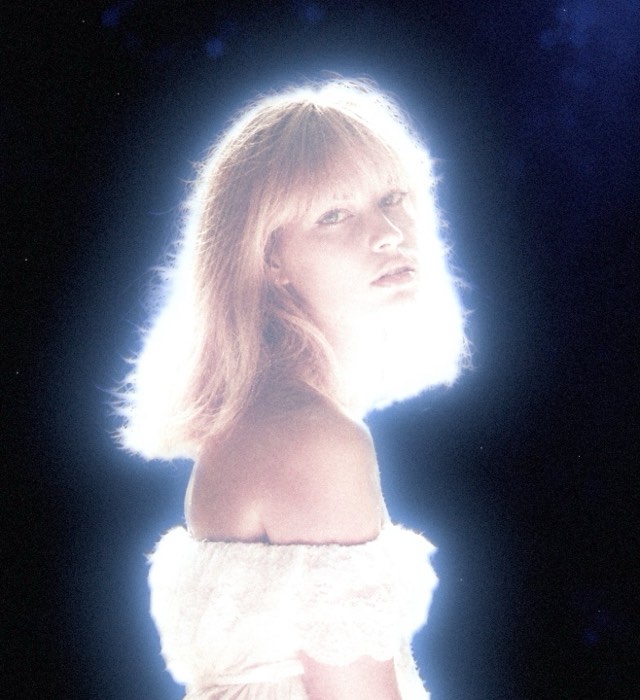
- AURA is a 2001 see-through point-and-shoot whose flash makes people glow.

FAQ
Why is my iPhone flash not working?
Most often it's set to Auto, Night mode is on, or a case or film is covering it. Remove the case, restart, and test the flashlight in Control Center. If the flashlight doesn't work either, Apple says you might need service.
How do I keep the flash on for every photo?
Tap the Flash control above the camera frame and choose On. To keep the Flash button visible, go to Settings > Camera > Indicators and turn on Flash.
Why doesn't the flash work in Night mode?
Apple says the flash isn't active in Night mode, and turning the flash on turns Night mode off. You can use one or the other.
Does iPhone 17 have a better flash?
iPhone 17 Pro and 17 Pro Max list an Adaptive True Tone flash. iPhone 17 and iPhone Air list a True Tone flash. Both are LED flashes, not xenon.
How do I get the paparazzi flash look on iPhone?
Set the flash to On, shoot in a dim room, stand about 1–2 m away and aim straight at your subject. For a harder, compact-camera flash, an app built around an old camera gets closer.
Sources
- Apple. Use iPhone camera tools to set up your shot. iPhone User Guide (iOS 27). Accessed November 22, 2026.
- Apple. Use Night mode on your iPhone. Apple Support. Accessed November 22, 2026.
- Apple. If the camera or flash on your iPhone or iPad isn't working. Apple Support, October 22, 2026. Accessed November 22, 2026.
- Apple. iPhone 17 - Tech Specs. Accessed November 22, 2026.
- Apple. iPhone Air - Tech Specs. Accessed November 22, 2026.
- Apple. iPhone 17 Pro - Tech Specs. Accessed November 22, 2026.
- Apple. iPhone 17 Pro Max - Tech Specs. Accessed November 22, 2026.
- Apple Newsroom. Apple Announces iPhone 5s—The Most Forward-Thinking Smartphone in the World. September 10, 2013. Accessed November 22, 2026.
- Apple Newsroom. Apple Introduces iPhone 6s & iPhone 6s Plus. September 9, 2015. Accessed November 22, 2026.
- Apple Newsroom. Apple debuts iPhone 14 Pro and iPhone 14 Pro Max. September 7, 2022. Accessed November 22, 2026.
- Hillary K. Grigonis, Digital Camera World. The compact camera comeback isn't about nostalgia. 6 surprising reasons Gen Z is bringing back point-and-shoots. January 6, 2025. Accessed November 22, 2026.
- Canon Camera Museum. PowerShot SD500 DIGITAL ELPH. Accessed November 22, 2026.
- Alina Selyukh, NPR, via Michigan Public. The 2000s called. They want their digital camera back. July 18, 2026. Accessed November 22, 2026.