
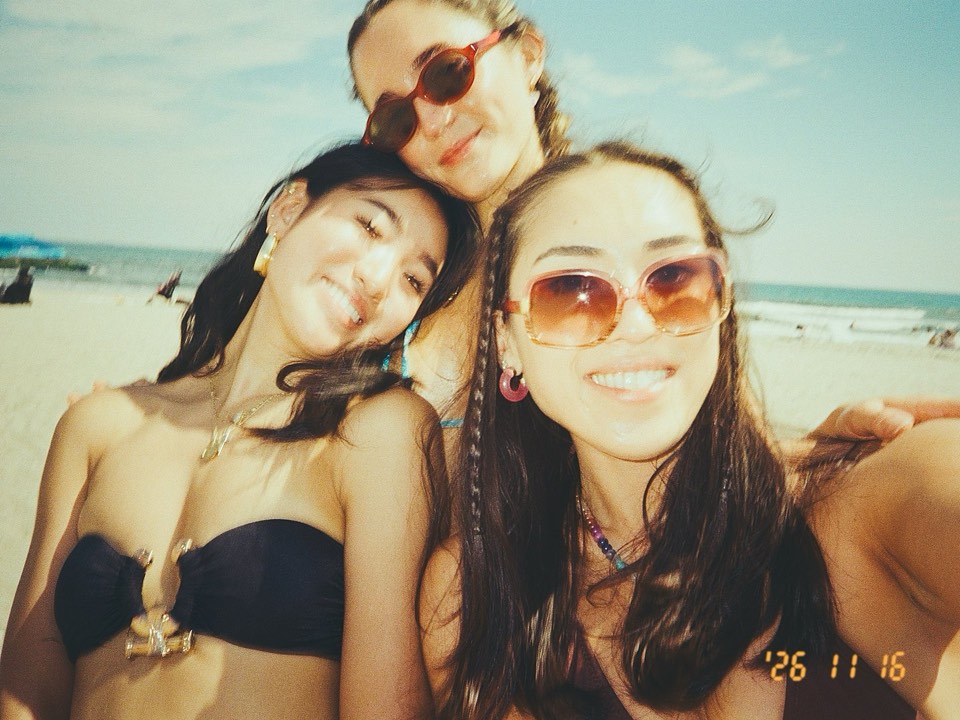
Photographic Styles are presets that change the look of every photo you take, adjusting specific colors in different parts of the picture instead of laying one tint over everything. iPhone 17, 17 Pro, 17 Pro Max and iPhone Air have Photographic Styles 2: pick a style such as Standard, Amber or the new Bright, then drag a control pad for tone and color and a slider for strength. You can switch the style later in Photos if you shot in High Efficiency. Texture and film grain need Photographic Styles 3, which no iPhone 17 model has.
Key takeaways
- Open Camera, tap the Camera Controls button or swipe up from the camera modes, then tap Styles and swipe through the looks.
- iPhone 17, 17 Pro, 17 Pro Max and Air have Photographic Styles 2. iPhone 17e has the first version. Texture and grain need Photographic Styles 3, which Apple lists only for iPhone 18 Pro models and iPhone Duo.
- Set your default in Settings > Camera > Photographic Styles. To keep the style you last used in Camera, turn on Preserve Settings > Photographic Style.
- On iPhone 17 models you can switch styles after the shot in Photos, but only for photos captured in High Efficiency.
- No style is "the best". For a retro look, try a warm undertone with less color, or a black-and-white style, and turn the flash on.
What Photographic Styles are
Apple introduced Photographic Styles with iPhone 13 Pro in 2021. The idea was to bring your own taste to every photo, and "unlike a simple filter," apply the right adjustments to different parts of the picture so that skin tones are preserved (Apple Newsroom).
With iPhone 16, Apple rebuilt the feature. Filters "often use a one-size-fits-all approach by adding a color to an entire scene," Apple said, while the new styles adjust specific colors and have "a deeper understanding of skin undertones." It also added more creative styles, called Moods, plus a new control pad and intensity slider (Apple Newsroom). So there are two kinds of style: undertones, tuned to how skin looks, and moods, which change the feel of the whole scene.
Photographic Styles on iPhone 17, 17 Pro and 17 Pro Max
When Apple launched iPhone 17, iPhone 17 Pro, iPhone 17 Pro Max and iPhone Air in September 2025, it called their styles "the latest generation" and added one new preset: Bright, which "brightens skin tones and applies a pop of vibrance across the image" (Apple Newsroom, Apple Newsroom, Apple Newsroom).
A year on, Apple's iPhone User Guide sorts phones into three generations. The 17 Pro and Pro Max sit in the same group as the regular iPhone 17 (Apple):
| Generation | iPhone models (Apple's list) | What you get |
|---|---|---|
| Photographic Styles 1 | iPhone SE (3rd generation), iPhone 13, 14 and 15 models, iPhone 16e, iPhone 17e | Tone and Warmth sliders |
| Photographic Styles 2 | iPhone 16, 16 Plus, 16 Pro, 16 Pro Max, iPhone 17, 17 Pro, 17 Pro Max, iPhone Air | Control pad for tone and color, plus an intensity slider |
| Photographic Styles 3 | iPhone 18 Pro, 18 Pro Max, iPhone Duo (Ultra Wide, Main and Center Stage cameras) | All of the above, plus Texture (such as Soft Skin, Glow or Film) and Grain |
That last row matters if you came here for a film look. Apple says texture and grain "are available on models that support Photographic Styles 3" (Apple). On iPhone 17 models, Styles change tone and color, but they can't add film grain.
How to use Photographic Styles on iPhone 17
- Open the camera tools. Open Camera, then tap the Camera Controls button or swipe up from the camera modes at the bottom of the screen. Styles work in Photo and Portrait mode (Apple).
- Pick a style. Tap Styles, then swipe left or right to preview the available styles. The preview changes live.
- Fine-tune it. Tap Customize. Drag your finger on the control pad to adjust tone and color, and drag the slider to control how strongly the style is applied (Apple).
- Reset or close. Tap the reset button to return to the default value, or tap the close button to close the Style menu. To stop using a style, choose Standard.
On iPhone 17e you'll see Tone and Warmth sliders instead of the pad. On models with the Camera Control, you can also lightly press the Camera Control twice, slide to Styles or Tone, lightly press to select it, and slide to adjust (Apple).
What does the pad do? MacRumors explains that left and right is color (left desaturates, right deepens it), and up and down is tone (up brighter, down darker). The slider sets overall intensity, which MacRumors calls Palette (MacRumors).
The style names
Apple's own pages name Standard, Bright and Luminous, and give Amber, Rose Gold, Quiet and Ethereal as examples (Apple, Apple). Apple doesn't publish the full list. MacRumors lists the undertones as Cool Rose, Neutral, Rose Gold, Gold and Amber, and the other styles as Vibrant, Natural, Luminous, Dramatic, Quiet, Cozy, Ethereal, Muted Black and White and Stark Black and White. Bright came later, with iOS 26.
Here's a fun detail: when the testing lab DXOMARK ran an informal blind test with 10 people in Paris, they "generally preferred" Standard, Cool Rose, Neutral and Rose Gold, and showed "overall low preference" for Gold and Amber (DXOMARK). A small test, but a good reminder that warm isn't everyone's favorite.
How to set a default Photographic Style
- Choose the default. Go to the Settings app, tap Camera, tap Photographic Styles, then select Use Standard or choose a different style (Apple).
- Keep your last pick. A style you pick in Camera applies until you change it or close Camera. To keep it next time, go to Settings > Camera > Preserve Settings and turn on Photographic Style (Apple, Apple).
How to change a Photographic Style after taking a photo
On iPhone 17 models you can. Camera needs to capture in High Efficiency first: go to Settings > Camera > Formats, then tap High Efficiency. If Formats is set to Most Compatible, new photos are saved as JPEG (Apple), and you can't re-style them later.
- Open the photo. In Photos, open a photo taken with a Photographic Style, then tap the edit button.
- Swap the style. Tap Styles, then swipe left or right on the style choices below the image.
- Adjust and save. Tap Customize to use the pad and slider. When you're done, tap the image, then tap Done (Apple).
Best Photographic Styles for a retro, film or digicam look
This part is taste, not Apple's advice: starting points we like. Try them on a few shots.
- Warm and faded, like a 2000s digicam: start from Amber or Gold, drag the pad a little left for less color and a little up for brighter. Then set the flash to On for indoor shots. Our iPhone flash guide shows how.
- Soft and quiet, like faded prints: try Quiet or Ethereal. Engadget's reviewer said an "ugly selfie" under "hideous overhead lights" "became a beautiful snapshot" after switching to Ethereal or Luminous (Engadget).
- Black-and-white film: try Stark Black and White if you like hard contrast, or Muted Black and White if you'd rather keep it soft.
- Sunny party photos: Bright, Apple's newest style, for brighter skin and more pop.

What Styles can't do
A style changes tone and color. It doesn't change the flash, the lens or the resolution, and on iPhone 17 it can't add grain. None of the settings in this guide adds a date stamp. That's where the whole look of an old camera comes from, as our digicam look guide explains.
If you want the whole camera, not just its color, DCIM's S-500 gives you a 2005 digicam's warm, faded color, flash, date stamp and grain in one shot. CHROME is a 2023 rangefinder-style compact with a fixed 23 mm lens and a warm-and-teal film recipe.
FAQ
What is the best Photographic Style on iPhone 17?
There isn't one. It's taste. Standard is the neutral starting point, Bright is Apple's newest, and for a retro look many people start from a warm undertone like Amber with less color. Try a few on the same scene and compare.
Does iPhone 17 Pro have Photographic Styles 3?
No. Apple lists iPhone 17, 17 Pro, 17 Pro Max and iPhone Air under Photographic Styles 2. Photographic Styles 3, with texture and film grain, is listed for iPhone 18 Pro, 18 Pro Max and iPhone Duo.
Can you change Photographic Styles after taking a photo?
Yes, on iPhone 17 models, if Camera captured the photo in High Efficiency. In Photos, open the photo, tap edit, then tap Styles.
Why can't I edit the Photographic Style in Photos?
The photo was probably taken in Most Compatible format. Go to Settings > Camera > Formats and tap High Efficiency for future photos.
Sources
- Apple. Use Photographic Styles with your iPhone camera. iPhone User Guide (iOS 27). Accessed November 22, 2026.
- Apple. Models that support Photographic Styles. iPhone User Guide. Accessed November 22, 2026.
- Apple. Use latest generation Photographic Styles. iPhone User Guide (iOS 18.0). Accessed November 22, 2026.
- Apple. Use iPhone camera tools to set up your shot. iPhone User Guide. Accessed November 22, 2026.
- Apple. Save camera settings on iPhone. iPhone User Guide. Accessed November 22, 2026.
- Apple. Edit photos and videos on iPhone. iPhone User Guide. Accessed November 22, 2026.
- Apple. Using HEIF or HEVC media on Apple devices. Apple Support. Accessed November 22, 2026.
- Apple. Use the Camera Control on iPhone. iPhone User Guide. Accessed November 22, 2026.
- Apple Newsroom. Apple debuts iPhone 17. September 9, 2025. Accessed November 22, 2026.
- Apple Newsroom. Apple unveils iPhone 17 Pro and iPhone 17 Pro Max. September 9, 2025. Accessed November 22, 2026.
- Apple Newsroom. Introducing iPhone Air, a powerful new iPhone with a breakthrough design. September 9, 2025. Accessed November 22, 2026.
- Apple Newsroom. Apple introduces iPhone 16 and iPhone 16 Plus. September 9, 2024. Accessed November 22, 2026.
- Apple Newsroom. Apple unveils iPhone 13 Pro and iPhone 13 Pro Max — more pro than ever before. September 14, 2021. Accessed November 22, 2026.
- DXOMARK. Feature focus: diving into the Apple iPhone 16 series undertones functionality. Accessed November 22, 2026.
- MacRumors. Customizing Your iPhone 16 Images With Photographic Styles. Accessed November 22, 2026.
- Cherlynn Low, Engadget. iPhone 16 Pro and Pro Max review: Apple focuses on cameras and customization. Updated September 20, 2024. Accessed November 22, 2026.